Categories and severities
Categories allow you to:
- organize hosts or services so as to define user rights on them using ACLs
- filter the view in the Resources status page
- classify the hosts and services within sub-groups in MBI reports.
- define types of objects in the Centreon MAP module.
A special type of category is called severity. Severities can be used to achieve all of the above, but also to:
-
sort the view on the Resources Status page by severity level. Severities are shown in the S column in the Resources Status page.
-
filter data in the Host monitoring, Service monitoring and Open Tickets widgets in custom views.
Severities are assigned in the host categories and service categories configuration pages.
Hosts category
Go to the Configuration > Hosts > Categories menu and click Add.
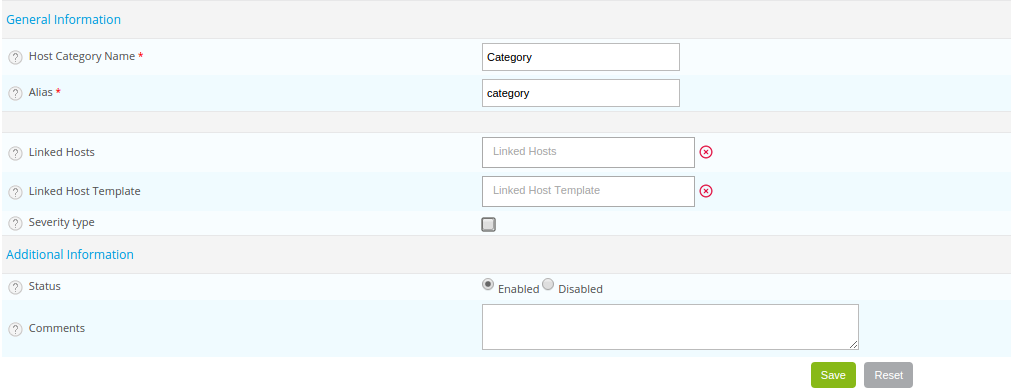
- The Host Category Name and Alias fields contain the name and the alias of the category of host, respectively.
- The Linked hosts list allows us to add hosts to the category.
- If a host template is added to the Linked host template list, all the hosts that inherit from this Model belong to this category.
- The Severity type box can be checked to assign a severity to the host. Severities must be a number ranging from 1 to 127. The highest severity level is 1.
- The Level and Icon fields define a criticality level and an associated icon, respectively.
- The Status and Comment fields allow us to enable or disable the category of host and to comment on it.
Services category
Go to the Configuration > Services > Categories menu and click Add.
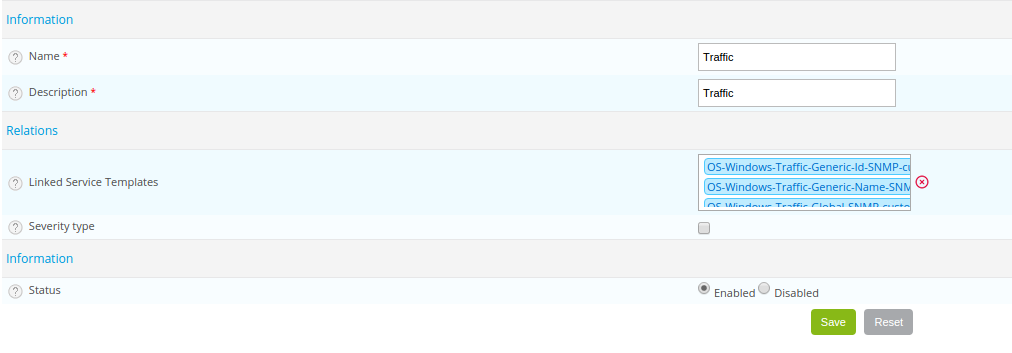
- The Name and Description fields define the name and the description of the category of service.
- If a service template is added to the Service Template Descriptions list, all the services that inherit from this template belong to this category.
- The Severity type box can be checked to assign a severity to the service. Severities must be a number ranging from 1 to 127. The highest severity level is 1.
- The Level and Icon fields define a criticality level and an associated icon, respectively.
- The Status field allows us to enable or disable the category of services.
Severities
Creating a severity
To create a severity:
- Go to Configuration > Hosts > Categories or Configuration > Services > Categories, and then click Add.
- Fill in the Name and Alias fields, and then check Severity type.
- Define a level for the severity ranging from 1 to 127 (a number that will be used to sort hosts or services in the Resources Status page) and an icon that will appear in the S column in the Resources Status page.
- Click Save. The severity appears in the list of severities.
Applying the severity to a host or service
- Edit the host or service (go to Configuration > Hosts > Hosts or Configuration > Services > Services by host, and then click the host or service).
- On the Extended Info tab, in the Monitoring Engine section, select the severity you want from the Severity level list. Only existing severities can be assigned this way.
- Click Save.
- Deploy the configuration. On the Resources Status page, the icon for the severity appears in the S column. A tooltip shows the level and name of the severity. If you click the column header, the view is sorted by severity level.